TLDR: made “Set Fuses”, “Upload, Build, and Set Fuses”, and “Upload w/o Build, and Set Fuses” toolbar buttons, code is below 
I kept running into issues with fuses, sometimes forgetting to set them, assuming they’d been set but didn’t, irksome lil things like that - especially on my current project, where I’m disabling the reset pin on an ATtiny85 and thus have to reset my fuses a LOT.
So (with help from this github comment and this forum post and a whooole lotta googling) I made a button for the VSCode PIO toolbar to upload your program and set fuses. I also made one just for setting fuses, cuz navigating to PlatformIO Sidebar > Project Tasks > Platform > Set Fuses takes eleven seconds too many  (edit: also added “Upload without Build and Set Fuses”, kudos to this post)
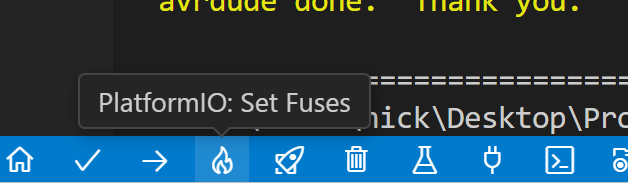
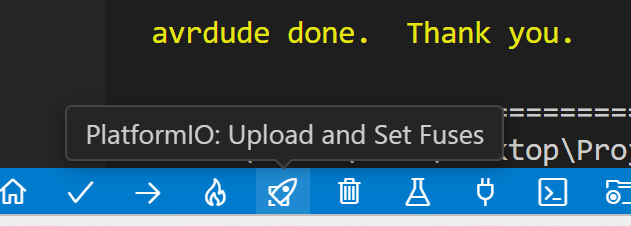
Just wanted to share! I’ve also made a gist because I’ll 100% hit this issue again someday and forget about this post. Here ya go 
Code for settings.json
It’s just the upload and fuses commands, one after the other. The only really notable parts are the ; to stagger commands and auto-detecting the currently active environment.
[ ... the rest of settings.json above ... ]

      "platformio-ide.toolbar": [

      [ ... other toolbar commands ... ]

        {
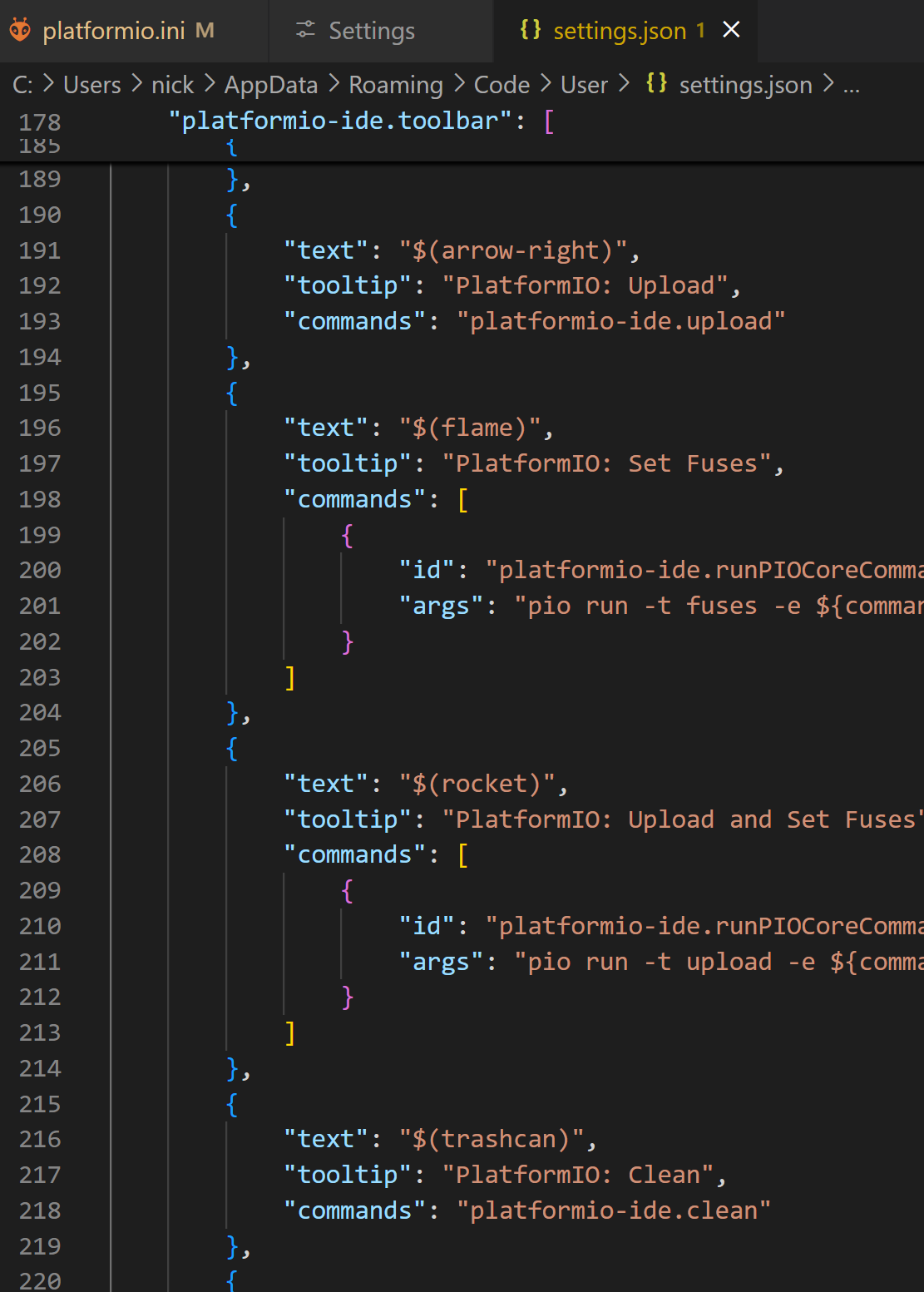
            "text": "$(flame)",
            "tooltip": "PlatformIO: Set Fuses",
            "commands": [
                {
                    "id": "platformio-ide.runPIOCoreCommand",
                    "args": "pio run -t fuses -e ${command:platformio-ide.activeEnvironment}"
                }
            ]
        },
        {
            "text": "$(rocket)",
            "tooltip": "PlatformIO: Upload, Build, and Set Fuses",
            "commands": [
                {
                    "id": "platformio-ide.runPIOCoreCommand",
                    "args": "pio run -t upload -e ${command:platformio-ide.activeEnvironment}; Write-Host ''; Write-Host -ForegroundColor Yellow '   > > > PROJECT BUILT AND UPLOADED, SETTING FUSES, PLEASE WAIT... < < <   '; Write-Host ''; pio run -t fuses -e ${command:platformio-ide.activeEnvironment}"
                }
            ]
        },
        {
            "text": "$(zap)",
            "tooltip": "PlatformIO: Upload w/o Build, and Set Fuses",
            "commands": [
                {
                    "id": "platformio-ide.runPIOCoreCommand",
                    "args": "pio run -t nobuild -t upload -e ${command:platformio-ide.activeEnvironment}; Write-Host ''; Write-Host -ForegroundColor Yellow '   > > > PROJECT BUILT AND UPLOADED, SETTING FUSES, PLEASE WAIT... < < <   '; Write-Host ''; pio run -t fuses -e ${command:platformio-ide.activeEnvironment}"
                }
            ]
        },

      [ ... other toolbar commands ... ]

      ],

[ ... the rest of settings.json below ... ]
Setup
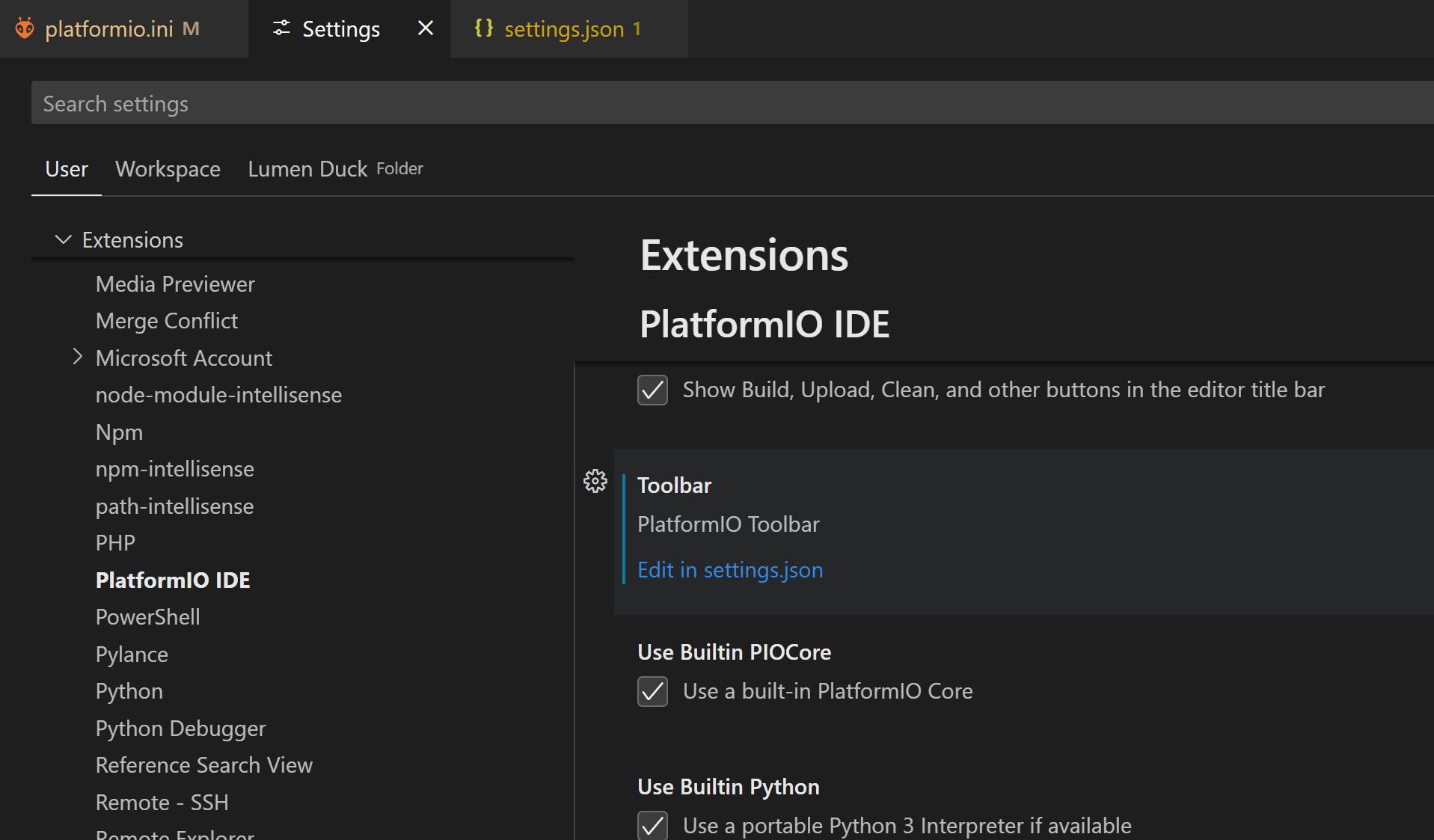
Easy enough, in VSCode go to Settings > Extensions > PlatformIO IDE, and under Toolbar, hit Edit in settings.json. Then just paste the above into the list of menu commands as you see fit I positioned them right after the default Upload button. Note that their position didn’t update until I restarted VSCode (aka relaunched the PIO extension).
(why yes I am procrastinating work by writing an exhaustively thorough tutorial for a very basic CLI command UI, don’t judge me)