PlatformIO does not have such a button, but using Advanced Scripting, one can add it.
Simply add the line
extra_scripts = reset.py
to the platformio.ini and the file reset.py as
Import("env")
import os
from platformio.builder.tools.pioupload import AutodetectUploadPort

platform = env.PioPlatform()

AutodetectUploadPort(env)
upload_port = env.subst('$UPLOAD_PORT')

def get_esptoolpy_reset_flags(resetmethod):
    # no dtr, no_sync
    resets = ("no_reset_no_sync", "soft_reset")
    if resetmethod == "nodemcu":
        # dtr
        resets = ("default_reset", "hard_reset")
    elif resetmethod == "ck":
        # no dtr
        resets = ("no_reset", "soft_reset")

    return ["--before", resets[0], "--after", resets[1]]

reset_flags = ' '.join(get_esptoolpy_reset_flags(env.subst("$UPLOAD_RESETMETHOD")))

esptool = os.path.join(platform.get_package_dir("tool-esptoolpy"), "esptool.py")
esptool_cmd = f'$PYTHONEXE "{esptool}" --port {upload_port} {reset_flags} --no-stub run'

# Multiple actions
env.AddCustomTarget(
    name="reset",
    dependencies=None,
    actions=[
        esptool_cmd
    ],
    title="Reset ESP8266",
    description="Resets the ESP8266 board"
)
and after a restart of VSCode a new custom target appears
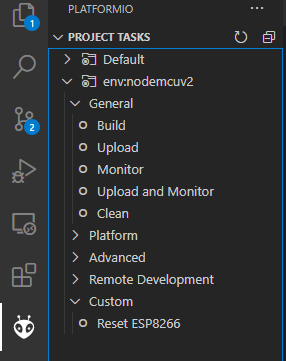
So you can just press the reset button and then Monitor.
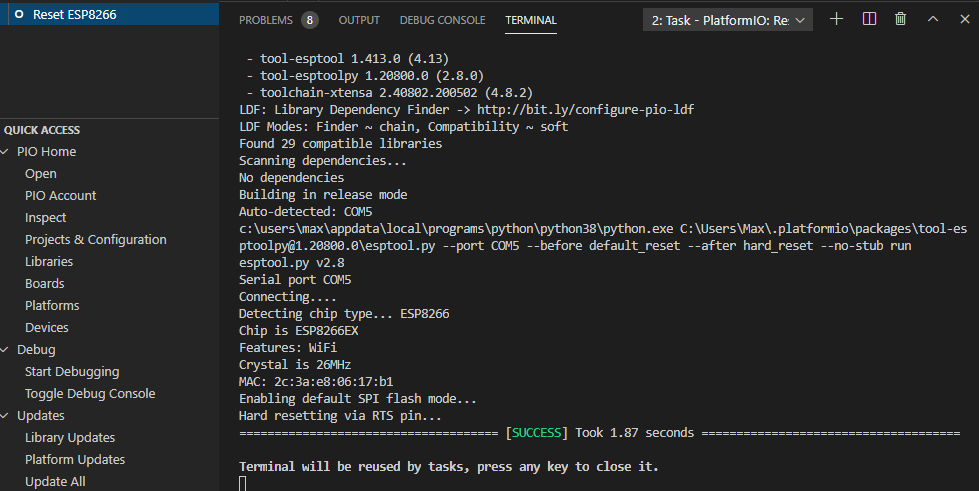
Note: Resetting will attempt to claim the USB serial interface, so any previous monitor session must be stopped, otherwise esptool.py can’t access the devce. You can stop a monitor session by pressing Ctrl+C while being focused in the terminal window.